Run Your Own LLM: A Step-by-Step Guide to Quickly and Cheaply Host an LLM
Step 1: Choosing an LLM on huggingface
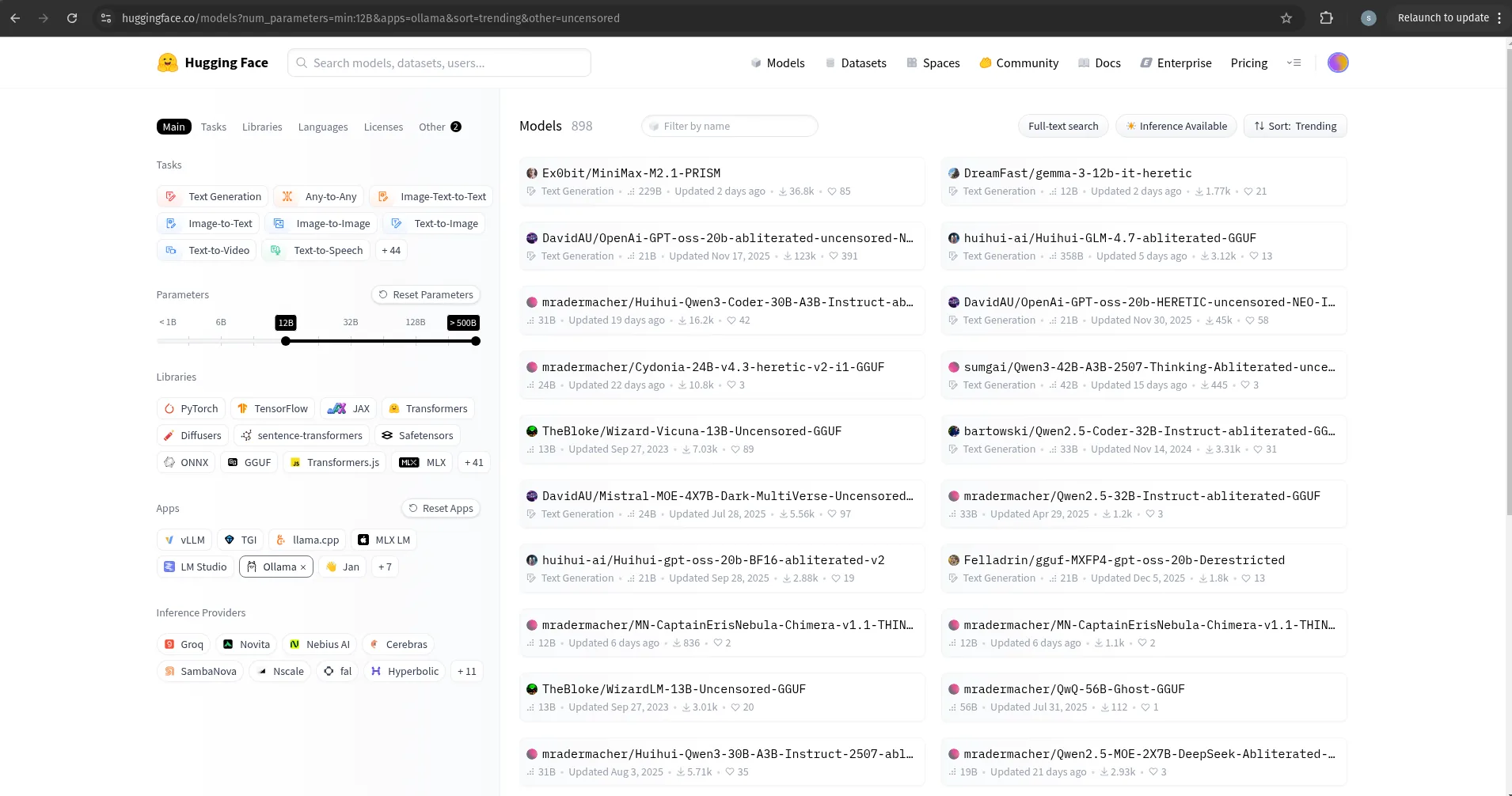
Hugging Face is effectively the "GitHub of Machine Learning," hosting thousands of open-source models. When selecting a model, the primary metric to consider is the parameter count (denoted by B for billions). As shown in the filters, I am targeting models between 12B and 500B. A higher parameter count typically results in a more capable model but requires significantly more VRAM and storage to host and execute.
huggingfacePro tip
To find Abliterated or De-aligned models (those without standard safety refusals), you can append &other=uncensored to your URI search queries on Hugging Face.
For this guide, I selected: Huihui-Qwen3-Coder-30B-A3B-Instruct-abliterated-i1-GGUF. This repository provides GGUF quantized builds. Quantization reduces model size while attempting to preserve intelligence. The files range from 6GB to 25GB:
- Balanced (Recommended):
Q4_K_M(~18.6 GB) — The industry standard for quality vs. performance. - Performance Focused:
Q3_K_M(~14.7 GB) — Faster inference, lower VRAM usage. - High Precision:
Q5_K_M(~21.7 GB) orQ6_K(~25.1 GB) — Best quality, but very resource-heavy.
Step 2: Running/Hosting the LLM on vast.ai
Since local hardware often lacks the VRAM required for 30B+ models, we use a cloud provider. vast.ai is a competitive marketplace for GPU rental—think of it as the "Airbnb for servers." You can rent high-end rigs for roughly $0.30 to $1.20 per hour, depending on the GPU model and storage needs.
Choosing a Template and Renting a Machine
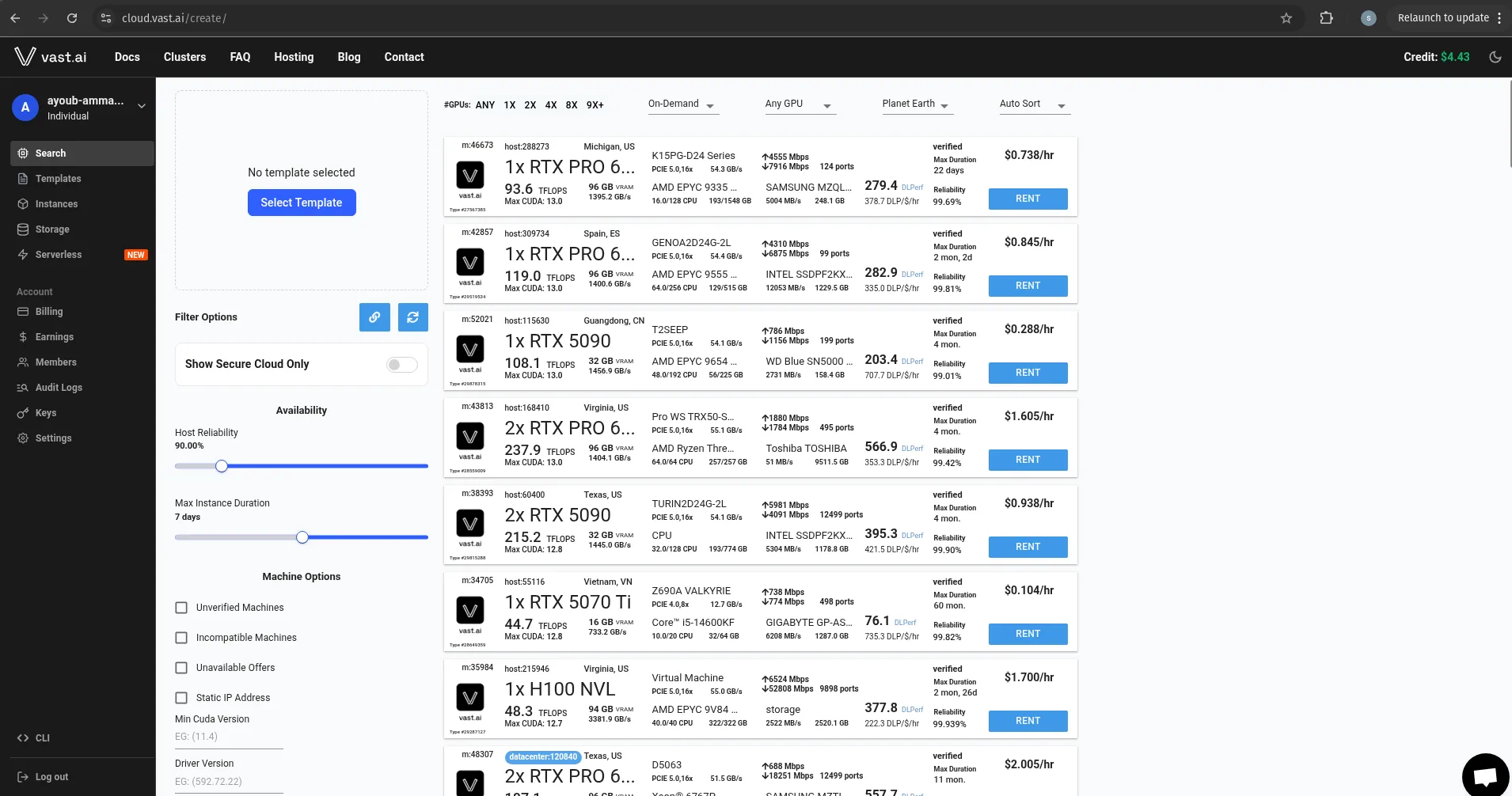
vast.ai- Top-up: Create an account and add a minimum balance of $5.
- Select a Template: Go to the "Instances" tab and click "Create Instance." Before renting, you must select a Docker template.
- Recommended Template: For this setup, I chose the Open WebUI (Ollama) template. This comes pre-configured with
llama.cppand Open WebUI, eliminating the need for manual environment configuration.
Note
You can use a minimal Ubuntu VM, but this requires manual SSH key configuration and complex driver installations.
Once you rent the instance, go to the "Instances" menu and launch it. If the loading process hangs too long, try a different instance on the marketplace.
Launching Open WebUI and the LLM Server
Once the instance status is "Running," click Open to access the applications interface. You will see options for Jupyter and Open WebUI.
- Open Open WebUI, create an admin account, and log in.
- Note that the model list is currently empty; we must manually provision our model to the backend.
- Open Jupyter and navigate to
File -> New -> Terminal.
Initialize your workspace:
mkdir -p /workspace/models/huihui-qwen3
cd /workspace/models/huihui-qwen3
Verify hardware: Run nvidia-smi to ensure the GPU is recognized and the drivers are functional. Then, verify the server binary exists: which llama-server.
Download the model: First, install the Hugging Face CLI:
python3 -m pip install -U huggingface_hubDownload the specific quantized file:
hf download mradermacher/Huihui-Qwen3-Coder-30B-A3B-Instruct-abliterated-i1-GGUF \
  "Huihui-Qwen3-Coder-30B-A3B-Instruct-abliterated.i1-Q4_K_M.gguf" \
  --local-dir .
Starting the Llama Server
Execute the following command to put the model into production. If you are using a high-end card like an RTX 5090 (32GB), you can offload all layers to the GPU:
/opt/llama.cpp/bin/llama-server \
  --model /workspace/models/huihui-qwen3/Huihui-Qwen3-Coder-30B-A3B-Instruct-abliterated.i1-Q4_K_M.gguf \
  --alias "Huihui-Qwen3-Coder-30B-Q4KM" \
  --host 0.0.0.0 \
  --port 20000 \
  --ctx-size 8192 \
--n-gpu-layers 96- Troubleshooting: If you encounter a CUDA Out of Memory (OOM) error, reduce the
--n-gpu-layersto 80 or 64.
Verify the API: In a new Jupyter terminal tab, run:
curl http://localhost:20000/v1/modelsIf you receive a JSON response, your backend is live.
Connect Open WebUI to llama-server
Finally, bridge the frontend to your running server:
- In Open WebUI, go to Settings > Connections > OpenAI.
- Click the Add (+) button.
- URL:
http://localhost:20000/v1 - API Key: Enter any placeholder (e.g.,
local). - Save and perform a hard reload (Ctrl+F5) of the page.
Your model alias should now appear in the dropdown menu, ready for use.
Heads up
To stop the hourly fee you need to either stop or destroy the instance.
Stopping your instance will halt all processes, but data remains accessible. Restart depends on GPU availability. Storage costs $0.58/day while stopped.
Heads up
While 'classic' VPS clouds like Hostinger can host small LLMs (Llama-3-8B/Mistral-7B) using GGUF quantization, performance is limited. Without GPU acceleration, expect a sluggish reading speed of 1–3 tokens per second.
Here are some that you can try.
Glossary
CUDA
CUDA (Compute Unified Device Architecture) is a proprietary parallel computing platform and programming model developed by NVIDIA that allows software to use a graphics card's GPU for much more than just rendering video games. By acting as a specialized "translation layer," CUDA enables developers to break down massive, complex mathematical problems—like the billions of calculations required for an LLM to generate a single word—into thousands of tiny, simple tasks that run simultaneously across the GPU's thousands of cores. This shift from the sequential processing of a CPU to the massive parallelism of CUDA is the primary reason why modern AI models can generate text in seconds on an NVIDIA-powered PC, rather than minutes or hours on a standard processor.
GGUF
GGUF (GPT‑Generated Unified Format) is an open binary file format designed for running large language models efficiently on local hardware. It replaces older GGML-style formats by storing the model weights, tokenizer data, quantization parameters, and metadata in a single well-structured file that’s optimized for fast loading and minimal memory use. GGUF supports multiple quantization schemes, so you can trade off accuracy vs. size to fit GPUs, Apple Silicon, or even CPUs, making it a common choice when you download community LLM checkpoints for tools like llama.cpp, Ollama, or LM Studio.
GPU layers
In the context of running Large Language Models, GPU layers refer to the specific portions of a neural network that are "offloaded" from your computer's system RAM into the specialized video memory (VRAM) of your graphics card. Because an AI model is essentially a massive stack of mathematical layers, tools like llama.cpp allow you to split the workload; by increasing the number of GPU layers, you move more of the heavy computation onto the GPU's thousands of parallel cores, which are significantly faster than a standard CPU. If your graphics card has enough VRAM to hold every single layer (known as "full offloading"), the model will run at its maximum possible speed, whereas "partial offloading" allows you to run large models that exceed your VRAM by sharing the burden between your GPU and the slower system RAM.
llama.cpp
llama.cpp is an open-source software library designed to run Large Language Models (LLMs), like Meta’s Llama, with high performance on standard consumer hardware. Written in C++, its primary innovation is the use of quantization to compress massive models so they can fit into a computer's RAM rather than requiring expensive, high-end GPUs. It is highly optimized for Apple Silicon (Macs) and various CPUs, making it the foundational tool for anyone wanting to run powerful AI locally, privately, and efficiently.
llama.cpp server
The llama.cpp server is essential because it transforms a local AI model into a persistent, high-performance background service that stays loaded in your RAM, eliminating the need to reload massive model files for every query. It provides a standardized API (compatible with OpenAI’s format), allowing you to connect your local model to external applications, web interfaces (like Open WebUI), or coding assistants. By acting as a "bridge," the server enables multiple apps to interact with the model simultaneously and provides a built-in web dashboard for a much more user-friendly experience than the standard command-line interface.
Ollama
Ollama is a user-friendly, open-source tool designed to simplify the process of running Large Language Models (LLMs) locally on macOS, Linux, and Windows. It acts as a lightweight manager that handles the complex backend work—such as downloading models, managing hardware acceleration, and setting up a local server—through a simple command-line interface or a desktop application. By bundling model weights, configuration, and datasets into a single "Modelfile," Ollama allows users to download and run powerful models like Llama 3 or Mistral with a single command, making local AI accessible to developers and hobbyists without requiring deep expertise in machine learning infrastructure.
Ollama vs llama.cpp
The relationship between Ollama and llama.cpp is best understood as the difference between a user-friendly application and the technical engine that powers it. llama.cpp is the core, high-performance C++ library that handles the actual "thinking" (inference) and is highly optimized for various CPUs and GPUs, offering granular control for advanced users who want to tune every setting for maximum speed. In contrast, Ollama is a "wrapper" built on top of llama.cpp that prioritizes extreme simplicity; it automates the difficult parts—like downloading models, managing memory, and setting up a local API server—into a single "one-click" experience. While llama.cpp is the better choice for researchers and "performance chasers" who need deep customization, Ollama is the industry favorite for beginners and developers who want to get an AI running in seconds with a simple command like ollama run.
Open WebUI
Open WebUI (formerly known as Ollama WebUI) is a feature-rich, self-hosted web interface that provides a sleek, ChatGPT-like experience for interacting with local Large Language Models. While tools like Ollama act as the "engine" that runs the models, Open WebUI serves as the "dashboard," allowing you to chat with your AI through a browser rather than a terminal. It goes far beyond simple chat by offering advanced features like RAG (Retrieval-Augmented Generation), which lets you "chat" with your own uploaded documents, as well as multi-user support, voice interaction, and integrated web search. Because it is designed to be extensible and privacy-focused, it has become the gold standard for users who want a professional, private AI workspace that stays entirely on their own hardware.
Because the model is stateless, it forgets everything the moment it finishes generating a response. To create the illusion of memory, your interface (like Open WebUI or Ollama) acts as a bookkeeper, silently bundling all previous questions and answers into a single long transcript and feeding that whole "context" back into the model alongside your latest prompt. As long as this transcript fits within the model's context window (its maximum "reading capacity"), the AI can refer back to earlier details as if it had been remembering them all along.
Parameter count
In a Large Language Model (LLM), parameter count refers to the total number of internal variables—primarily "weights" and "biases"—that the model has learned during its training process to represent patterns in human language. You can think of these parameters as billions of tiny, adjustable "knobs" or "synapses" that determine how a model transforms an input (like your prompt) into a specific output; the more knobs a model has, the more complex information and nuanced reasoning it can generally store. While a higher count (like 70B or 70 billion) usually indicates a "smarter" model with better reasoning capabilities, it also directly increases the amount of memory (RAM/VRAM) required to run the model and the computational power needed for it to generate a response.
Quantization
Quantization is the process of converting high-precision model weights (typically 16‑ or 32‑bit floating-point numbers) into lower-precision representations—often 8‑, 4‑, or even fewer bits—while trying to preserve as much predictive accuracy as possible. This shrinks the model’s memory footprint and speeds up inference, enabling large neural networks to run on smaller GPUs, CPUs, or edge devices.
ROM
ROM (Read-Only Memory) is a type of non-volatile storage that permanently holds the essential instructions needed for your hardware to start up and communicate with other components. Unlike your computer's RAM or your GPU's VRAM, which are "volatile" and lose their data when the power is turned off, ROM retains its information indefinitely without electricity. It typically houses the BIOS or UEFI—the "firmware" that tells your computer how to find your operating system on the hard drive—and is designed to be written to only during rare manufacturing or "flashing" updates. Because its contents cannot be easily modified or deleted by standard software, ROM acts as a secure, unchanging foundation that ensures your device always knows how to wake up and function at its most basic level.
VRAM
VRAM is the high-speed, dedicated memory located directly on your graphics card that serves as the "workspace" for the GPU. Unlike your standard system RAM, which is shared by all your computer's apps, VRAM is specifically designed for the massive, high-speed data transfers required to process an AI model's billions of parameters. When you run a model, the goal is to fit as many of its layers as possible into the VRAM; because VRAM is significantly faster than standard RAM, the more of the model that "lives" there, the faster your AI will generate text. If a model is too large for your VRAM, it must overflow into your slower system RAM, which acts as a bottleneck and significantly reduces performance.